Canon SELPHY CP1500 Setup for iPhone, iPad: Wi-Fi Fixes
The short answer
The my4cut app prints with AirPrint, so any AirPrint printer works, not only the CP1500. If it won't print, first check that the printer and your iPhone or iPad are on the same Wi-Fi and that the CP1500 shows in the printer list. The connection steps and a checking order are below.
Can the CP1500 print straight from an iPhone?
Yes. Once the printer is on Wi-Fi, you print from the result screen in the app. my4cut prints with AirPrint, and the store description says an AirPrint printer lets you print too. You don't install a separate printer app. The iPhone or iPad finds the printer on the network.
Any AirPrint printer works. The setup guide uses the Canon SELPHY CP1500 because it is the most commonly used one, and this article does the same. iPad comes up a lot because event booths often run on one, but the app runs on ordinary phones and tablets.
When printing fails, it usually fails at the connection. The order below narrows it down. If this is your first time, start from the Wi-Fi setup section.
What should I check first when it won't print?
Check from the easy end. This list combines the conditions in the printer guide with the checks people commonly run on AirPrint printers. Causes vary by device and network, so ticking items off from the top is the quickest way.
- 1. The printer is on, and the paper and ink cartridge are loaded correctly.
- 2. The printer shows that it is connected to Wi-Fi.
- 3. Your iPhone or iPad is on the same Wi-Fi as the printer. This is the condition the guide stresses.
- 4. On the app's result screen, tap Print at the top right and see whether Canon SELPHY CP1500 appears in the list.
- 5. If it doesn't appear, restart the printer and your device once each and try again.
- 6. If it still doesn't, restart the router and redo the printer's Wi-Fi setup from the start.
How do I set up the CP1500 on Wi-Fi?
You only do the printer side once. These are the steps from the my4cut printer guide.
- 1. Turn the printer on and press the Wi-Fi button.
- 2. In Wi-Fi settings > connection settings, choose Via wireless router.
- 3. For the connection method, choose Other and press OK.
- 4. Under WPS connection, choose Search for wireless router and press OK.
- 5. Pick the same Wi-Fi your iPad is on.
How do I print from the app?
With the printer set up, there are two steps in the app. First, connect your iPhone or iPad to the same Wi-Fi as the printer. Then tap Print at the top right of the my4cut result screen.
If Canon SELPHY CP1500 appears in the printer list, the connection is fine. Select it, tap Print at the top right again, and it prints. The result you made with the frame comes out as it is, so the only check before printing is whether you like the frame on the result screen.
If you are unsure whether an app supports printing at all, the photo booth app checklist has a print item. For the steps alone, see the printer setup guide.
What if the CP1500 doesn't show in the printer list?
This is the most common symptom. An empty list means your iPhone or iPad can't find the printer, so the first suspect is the same-Wi-Fi condition from the guide.
Sometimes the phone has dropped to cellular data, or it sits on a network with a different name from the printer's. Some public Wi-Fi networks also stop devices from seeing each other, so even the same network name can hide the printer. Try a normal router at home or in an office.
On the printer side, redo the Wi-Fi setup steps above from the start. If the event venue's Wi-Fi changed, connect the printer to the new one again, because it has to match your iPad.
You can also test outside the app. Pick a photo in the Photos app, open Share, then Print, and see whether the printer appears. If it doesn't appear there either, the problem is the connection, not the app.
What do I bring when I use a printer at an event?
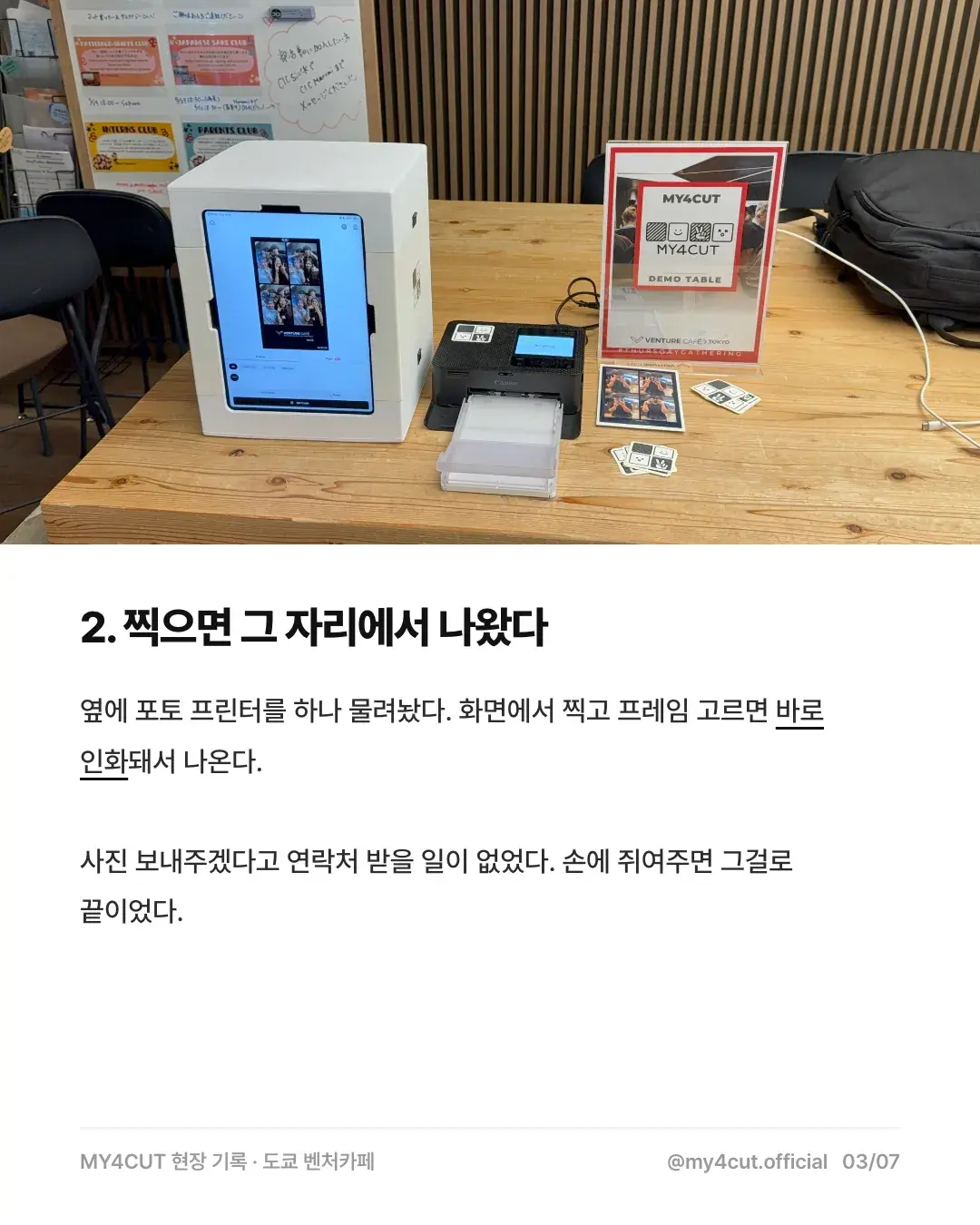
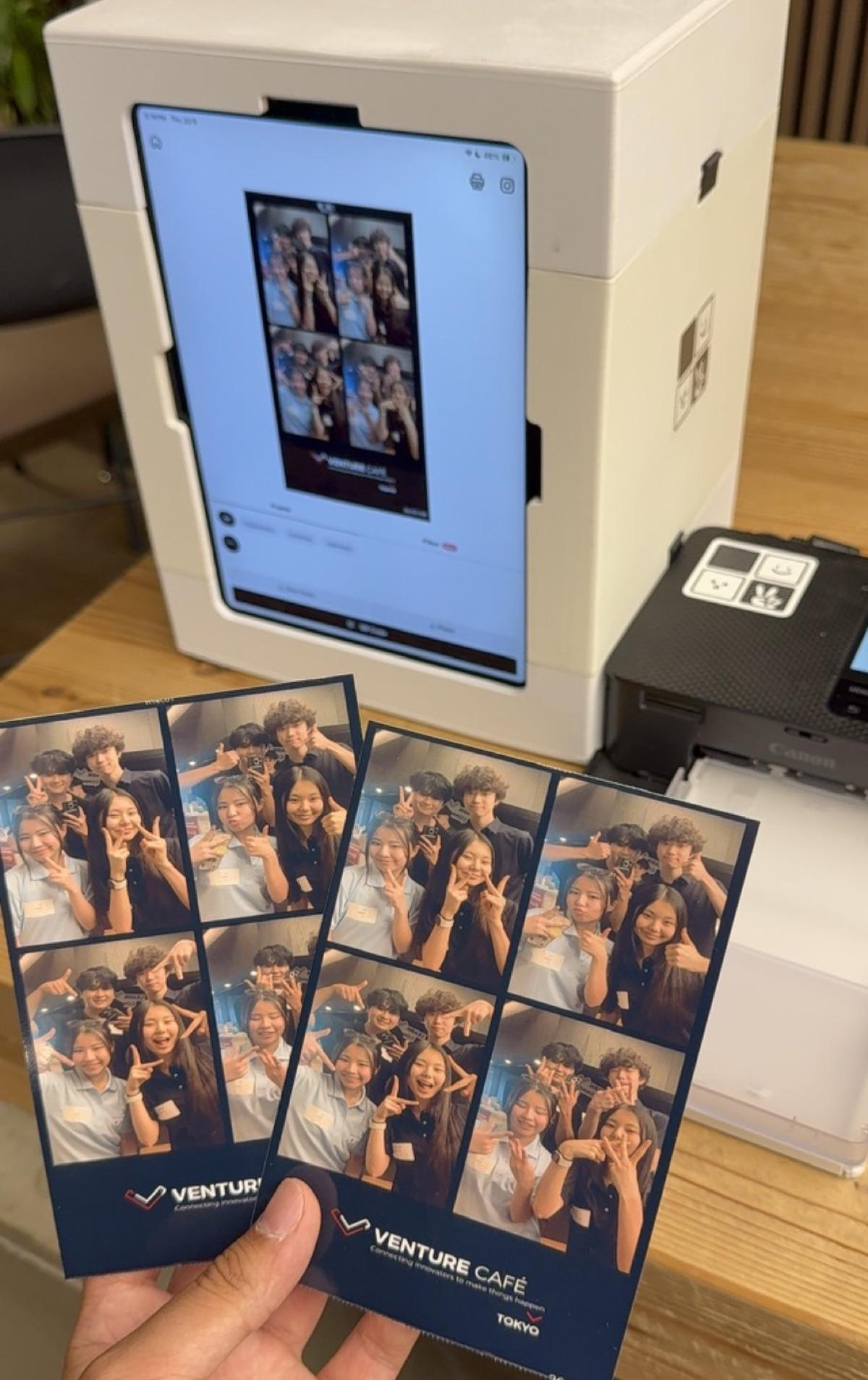
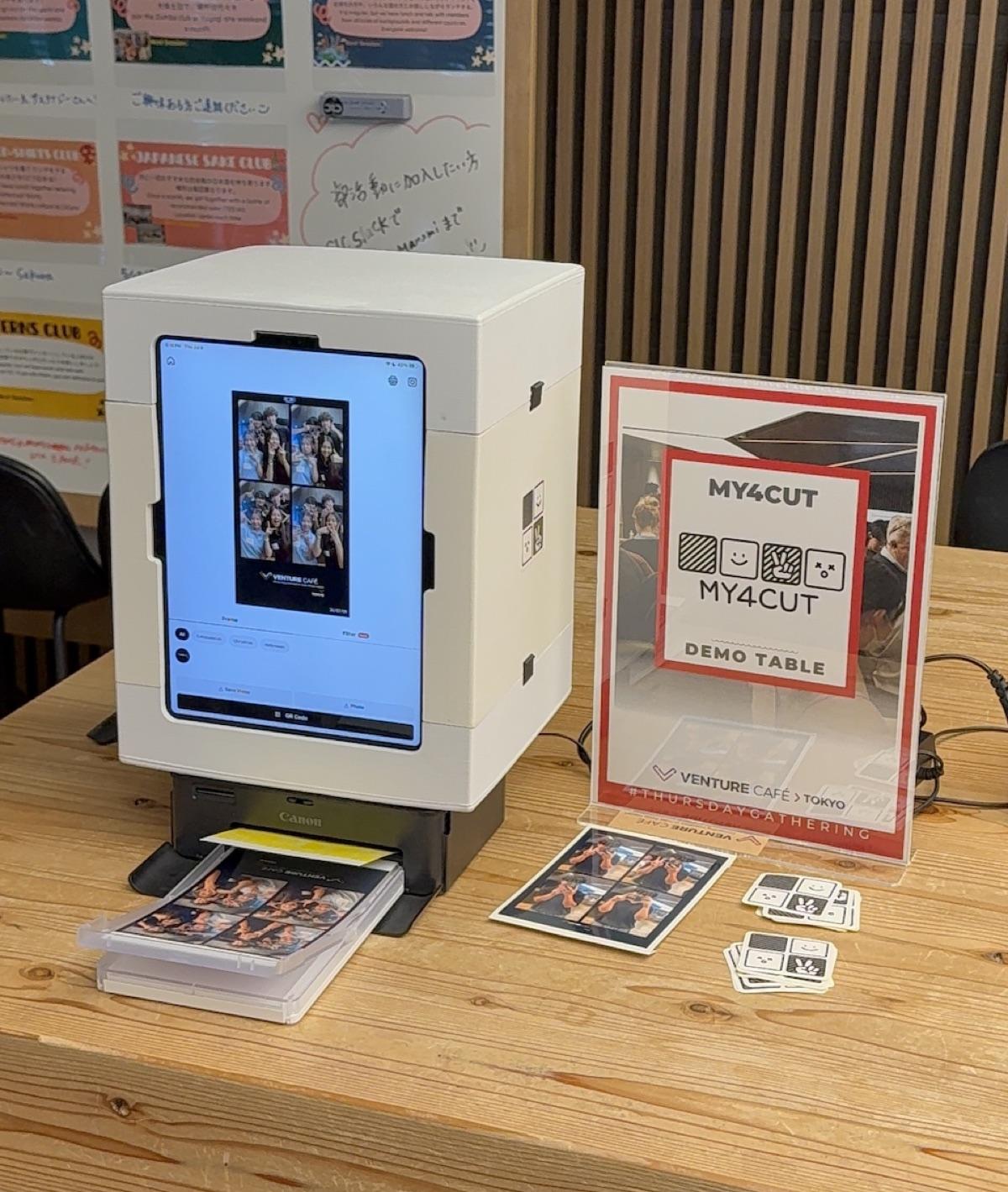
On July 9, 2026 at Venture Café Tokyo, I borrowed one spot on a demo table and set up a mini booth holding an iPad and one photo printer. The strip printed on the spot, and I printed several copies for the people who shot together. Everything fit in one suitcase: iPad, mini booth, printer and photo paper. There is more in the Venture Café Tokyo write-up.
I made the frame in the app that day and put the event name and date at the bottom. When I handed over the printed strip, there was no need to collect contact details to send photos later.
The event checklist covers what to pack. If you use a printer, add photo paper, the power adapter and the step of connecting the printer to the venue's Wi-Fi. Bring spare cartridges and paper.
Frequently Asked Questions
Can I print directly from my iPhone?
Does it work with printers other than the CP1500?
The CP1500 doesn't appear in the printer list. What now?
How do I connect the CP1500 to Wi-Fi?
Can I get the strip without a printer?
Want the connection steps on their own?
The printer guide walks through setup to printing, step by step.
Open the printer guidePrint your 4-cut with AirPrint
The MY4CUT app prints to wireless printers through AirPrint, and you can share the same strip by QR code. Free on iOS and Android.